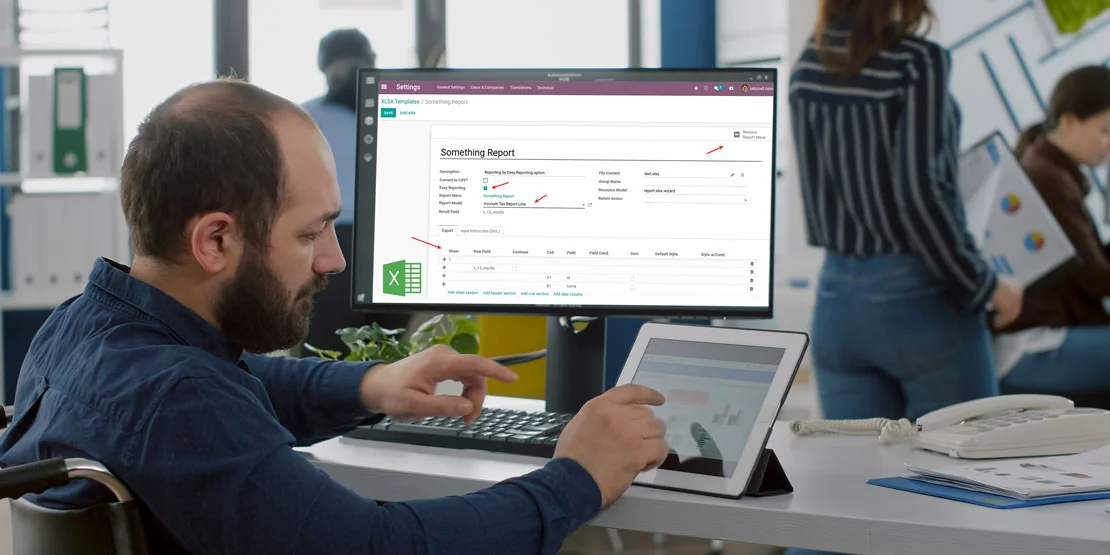
Most people who search for an "Odoo Excel connector" want one of two things: to get a spreadsheet into Odoo, or to get Odoo data out into Excel. Odoo does both without a connector, from the list view of almost any screen.
This guide starts with the built-in import and export, then covers Odoo spreadsheets and the narrower cases where a custom Excel sync is worth building. If your need is the sync rather than the file, our Odoo integration services team can scope it.
What Odoo Already Does With Excel
| Task | Built into Odoo? | Where |
|---|---|---|
| Import contacts, products, invoices or any list | Yes | Import icon in the list view; accepts Excel and CSV |
| Update existing records from a file | Yes | Import with the external ID column |
| Export records and fields to Excel | Yes | Select records, then Export |
| Build a pivot or list report inside Odoo | Yes, Enterprise | Odoo Spreadsheets, linked to live data |
| Sync a sheet automatically on a schedule | No | Custom connector or third-party app |
How to Import From Excel Into Odoo
- Open the list you want to fill — Contacts, Products, Sale Orders, Journal Items.
- Click the import icon (or Actions → Import records) and upload your .xlsx or .csv file.
- Map each spreadsheet column to an Odoo field. Odoo guesses the obvious ones; check the rest, especially dates, currencies and relational fields.
- Fix formatting before you continue: one row per record, no merged cells, no totals rows, and the same date format in every row.
- Use the test step. Odoo shows what will be created and what will fail before anything is written.
- Import, then check a handful of records against the file.
To update existing records instead of creating duplicates, include the external ID column in your file (or the database ID, if you know it). Without an ID, Odoo treats the row as a new record.
How to Export Odoo Data to Excel
Go to the list view, filter or search to the records you want, tick them, then choose Export. Pick the fields in the export dialog; you can add fields from related records (for example, the customer's country on a sales order). Odoo downloads an .xlsx file you can open in Excel.
If you run the same export every month, save the field selection as an export template so the columns stay identical. That is the part that makes month-to-month comparisons reliable; the download itself is the easy part.
Odoo Spreadsheets: Reporting Without Exporting
Odoo Enterprise includes Odoo Spreadsheets, where you can insert list and pivot views into a spreadsheet and keep them linked to live data. It is useful when the report is recurring and internal: you build it once, refresh it, and skip the export-edit-reimport loop.
Two limits worth knowing. It is an Enterprise feature, and it is a reporting tool, not a data-entry route — edits still happen in Odoo's forms or through an import.
When a Custom Excel Sync Makes Sense
A custom sync earns its cost in a few specific situations: a supplier sends the same price sheet every week, prices are maintained in Excel by someone who will not move, or a planning team keeps a workbook that has to stay in step with Odoo stock.
This is custom work, not a standard Odoo feature. O2B builds these syncs; there are also third-party spreadsheet connectors. The usual design is a scheduled job that reads the file and writes to Odoo through its API — nightly, hourly, or on demand. It is not a live link, and anyone who promises a live Excel connection should be able to name the mechanism.
Our Odoo–Google Sheets price sync example shows the same pattern with a live sheet: what was synced, how conflicts were handled, and what to check before you build one. If you want that connection built, start with Odoo integration services.
Clean the Data Before You Import
- Back up first. Take a database backup before a large import, and keep the source file exactly as it was.
- Import in batches. A small first batch shows mapping errors while they are still cheap to fix.
- Check required fields. Odoo marks them in the import dialog; a missing required field fails the row, not the whole file.
- Match names, not just values. Customer names, product references and tax labels have to match what Odoo already holds, or you create duplicates.
- Keep one source of truth. If the sheet stays in use after the import, decide which system wins before the next update.
Moving a Lot of Data? Migrate Instead
Import is the right tool for a few hundred records. If you are moving years of history, chart of accounts, open invoices or stock valuation out of another ERP, a planned migration is safer than a series of spreadsheets. Our Odoo migration guide covers the sequence and what to prepare.
Updating Odoo from the same spreadsheet every week?
Let's automate it.
Frequently Asked Questions
Can Odoo import Excel files?
Yes. Most lists in Odoo have a built-in import for Excel and CSV files, with column mapping and a test step before the records are created.
Can I export Odoo data to Excel?
Yes. Select the records in a list view, choose Export, pick the fields you need and download the file. Odoo can save the field selection as an export template.
Can Excel and Odoo sync automatically?
Not out of the box. Automatic sync needs a custom connector or a scheduled import that reads the spreadsheet and writes to Odoo through its API.