Mastering Budget Management in Odoo
Managing and keeping a tab on budgets is an essential aspect of running a business. Companies always focus on managing their finances in a way that fulfills their financial objectives. This is why businesses need to be disciplined when spending money across various business operations.
Budget planning is one of the simplest ways to control costs. It helps companies reduce unnecessary expenditure, improve operating margins, and analyze operational performance by comparing actual spend against planned budgets.
Deploying Odoo accounting gives finance teams robust budget management tools to track financial performance in real time. Rather than relying on static offline spreadsheets that quickly become obsolete, Odoo connects budgets directly to incoming vendor bills, expense sheets, and purchase orders. In this guide, we walk through the exact steps to enable, configure, and monitor budgets in Odoo.
Edition & Version Details
Odoo Enterprise Requirement: Budget Management is an exclusive feature of Odoo Enterprise (packaged via the account_budget module in Odoo Accounting). It is not available in Odoo Community. The step-by-step instructions, screenshots, and navigation paths documented below reflect Odoo 16, 17, and 18 Enterprise.
Turn On Budget Management
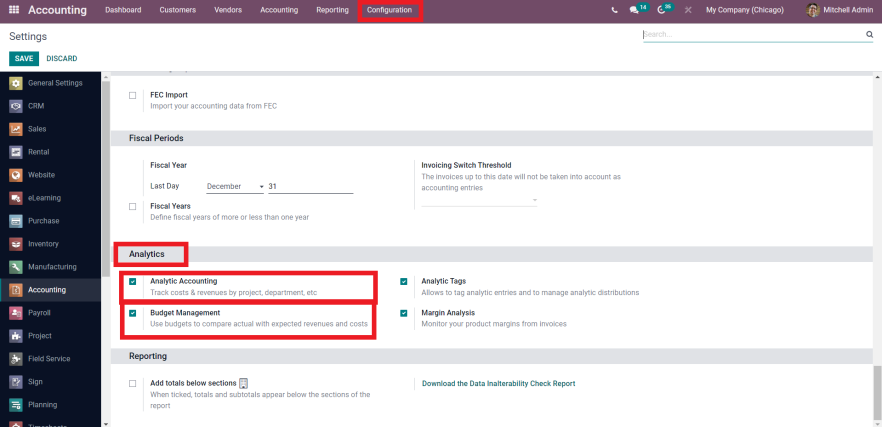
Before you can create budgets, you must enable the feature in your accounting configuration. Navigate to the Accounting application, select Configuration, click Settings, and scroll down to the Analytics section.
Check the boxes for both Analytic Accounting and Budget Management, then click Save. This activates the budget menus, budgetary positions, and analytic distributions across your system.
Set Up Budgetary Positions and Analytic Accounts
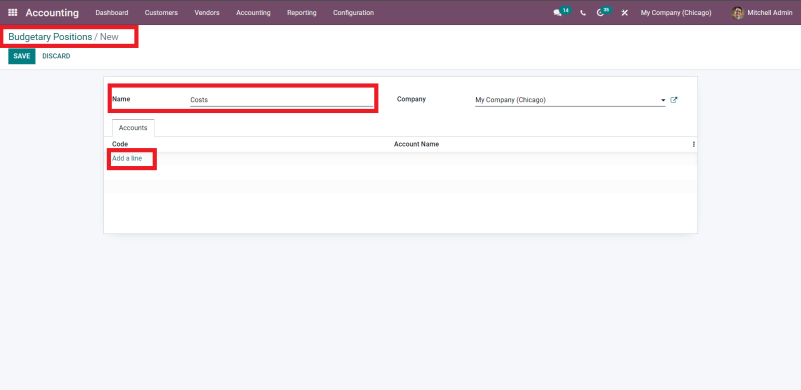
Budgetary positions in Odoo group the general ledger accounts for which your business wants to establish financial limits (typically expense or revenue accounts). The budgetary position needs to be defined so Odoo knows which accounts to track against the budget.
Click New (or Create) to add a budgetary position. Give it a descriptive name (e.g., Marketing & Advertising Expenses), assign your company in multi-company environments, and click Add a line to select the relevant cost accounts from your Chart of Accounts.
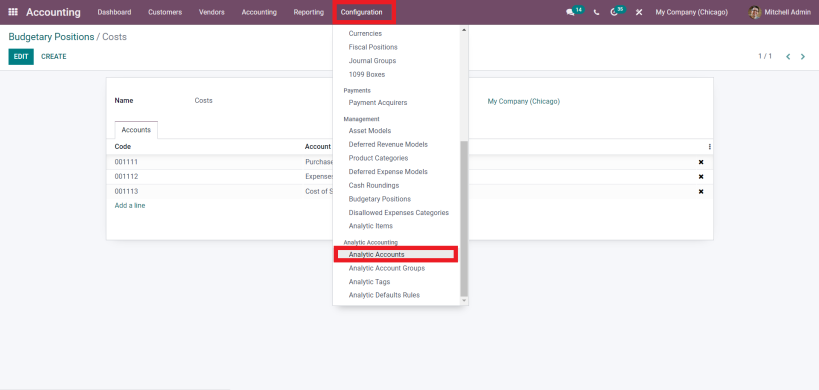
Next, set up your Analytic Accounts under Configuration > Analytic Accounting > Analytic Accounts. Analytic accounts act as cost centers (such as departments, campaigns, or projects) allowing you to isolate expenditures independently of your formal balance sheet.
Create and Approve a Budget
Now that your budgetary positions and analytic cost centers are ready, navigate to Accounting > Management > Budgets to create your active budget.
Click New. Enter the budget name (e.g., Q1 Marketing Budget), assign the Responsible manager, and specify the Period (Start Date and End Date). In the Budget Lines tab, add lines with:
- Budgetary Position: The category of ledger accounts to monitor.
- Analytic Account: The cost center responsible for the spend.
- Planned Amount: For cost and expense tracking, enter a negative value (e.g., -$50,000.00). In Odoo, revenue is positive and expenses are recorded as negative values.
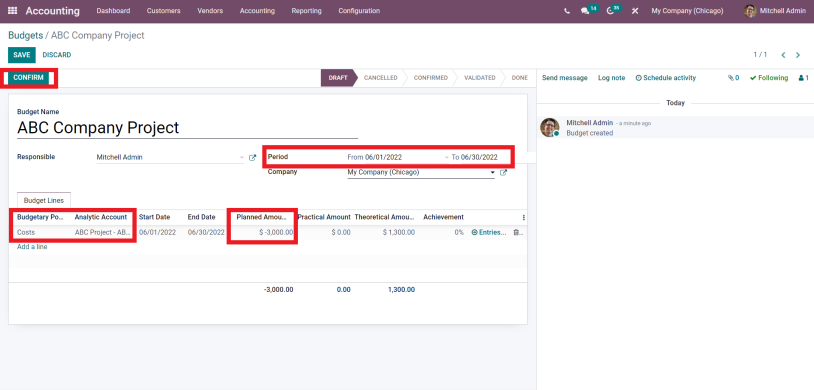
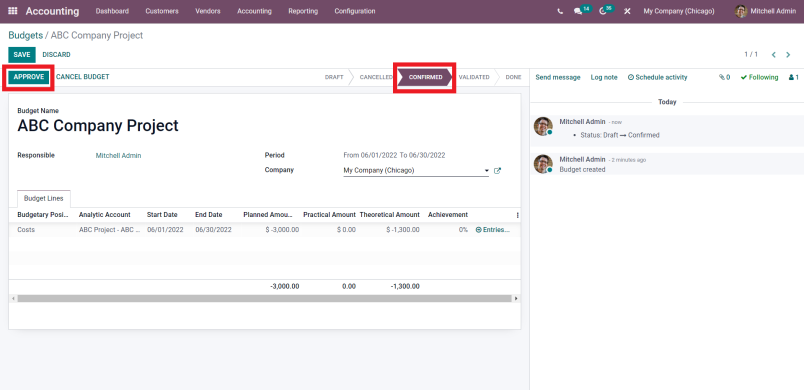
Click Confirm to move the budget from Draft to Confirmed. An authorized financial manager can then click Approve to make the budget active.
Compare Planned vs. Actual Spend in Real Time
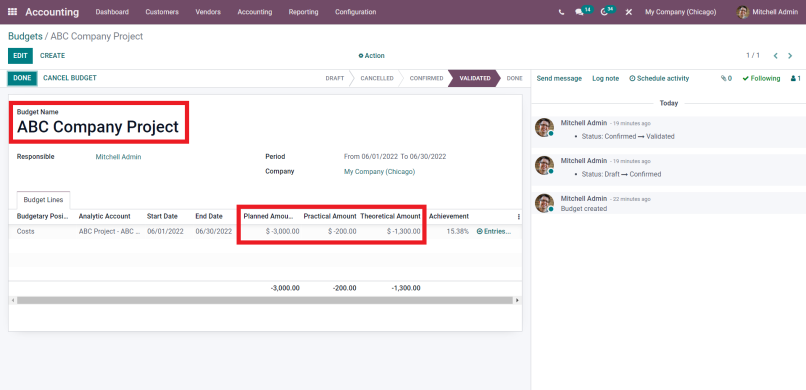
As your team records vendor bills or employee expense sheets, make sure each line item is tagged with the appropriate general ledger account and analytic account. Once confirmed, Odoo automatically syncs actual figures to your budget record:
- Planned Amount: The fixed ceiling set during budget creation.
- Practical Amount: The actual cumulative spend incurred to date from confirmed journal items.
- Theoretical Amount: The pro-rata budget you theoretically should have spent based on elapsed time within the period.
- Achievement (%): The percentage of practical spend against planned or theoretical thresholds.
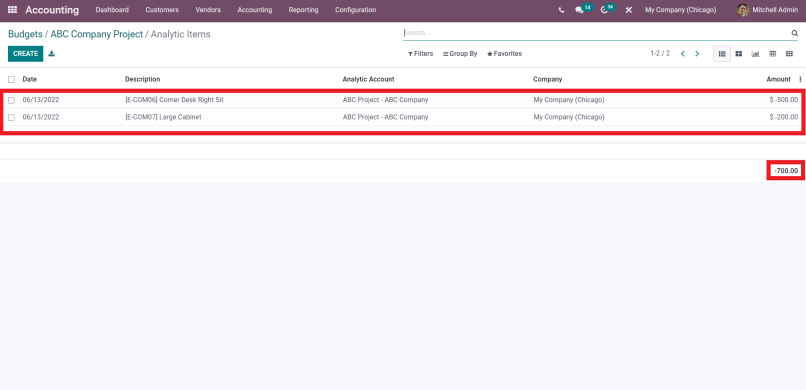
Need to audit individual invoices? Click the Entries smart button on any budget line to view every underlying journal item, vendor bill, and expense report contributing to the total practical amount.
Practical Example: Tracking a $50k Marketing Budget
Let us see how a company tracks a $50,000 quarterly marketing budget in Odoo:
| Budget Field | Configuration / Value | Description |
|---|---|---|
| Budget Name | Q1 Marketing Campaign | Quarterly operational budget (Jan 1 – Mar 31) |
| Budgetary Position | Marketing & Advertising | GL Accounts: 601000 (Ads), 601200 (Social), 601500 (Agency) |
| Analytic Account | Marketing Department | Cost center tagging all marketing invoices |
| Planned Amount | -$50,000.00 | Maximum allocated expenditure for Q1 |
| Practical Amount (Day 60) | -$38,500.00 | Total bills recorded through end of February |
| Theoretical Amount (Day 60) | -$33,333.33 | Pro-rata budget based on 60 of 90 days elapsed (66.7%) |
| Achievement Rate | 77.0% | Actual spend ($38,500) vs. Planned total ($50,000) |
| Available Balance | $11,500.00 | Remaining budget available for March campaigns |
Operational Insight: At Day 60, the theoretical expected spend is 66.7% ($33,333.33), but actual practical spend has reached 77.0% ($38,500.00). Because Odoo surfaces this variance in real time, the marketing director can instantly review the $11,500 remaining balance and recalibrate March ad spend before any overruns happen.
Frequently Asked Questions
Is Budget Management available in the free Odoo Community Edition?
account_budget). It requires an active Odoo Enterprise license.
Why are planned expenses entered as negative numbers in Odoo budgets?
What is the difference between Practical Amount and Theoretical Amount?
Optimize Your Financial Operations with O2B Technologies
Need assistance structuring your Chart of Accounts, setting up automated analytic distribution models, or configuring multi-departmental budgets in Odoo?